
A plain-English walkthrough for fishing guides, charters, outfitters and lodges.
A lot of you wrote back after my recent email about claiming your business profile in ChatGPT. Good questions, too. Rather than answer them one call at a time, I put everything in one place: what this new feature is, why it matters for businesses like yours, exactly how to claim your profile, and what to do if you get stuck.
Quick heads-up before we start: this feature is brand new (OpenAI launched it in beta on November 10, 2026), so screens and rules are still changing. If something on your screen doesn’t match this guide, OpenAI’s official help article (linked at the bottom) is the source of truth.
What is a ChatGPT business profile?
Think of it as a Google Business Profile, but for ChatGPT. OpenAI calls the program Businesses in ChatGPT, and you manage it from a new area inside ChatGPT called Business Hub.
Here’s the key thing to understand: ChatGPT is already talking about your business. When someone asks “best fishing charter in Destin” or “who’s a good walleye guide on Lake Erie,” ChatGPT pulls together an answer from whatever it can find on the web: your website, reviews, directories and more. Some of that info may be outdated or just wrong.
Claiming your profile lets you:
- Correct and control your basic details: website, description, category, logo and cover photo.
- See how people find you: Business Hub shows how often ChatGPT mentions you, how many people click through to your website, and the topics that led people to your business (over the last 28 days).
- Protect your listing: once it’s claimed and verified, someone else (a former employee, an old agency, a random stranger) can’t claim it out from under you.
- Get the blue check: a verification badge appears once OpenAI confirms your identity.
It’s free. No ad account or paid plan required.
Why it matters for fishing and hunting businesses
More and more of your future customers are planning trips by asking an AI instead of scrolling Google. “Plan me a 3-day fishing trip in the Florida Keys” or “family-friendly salmon charter near Seward” are exactly the kinds of questions people now type into ChatGPT.
When that happens, you want ChatGPT working from your facts: the right season, the right species, the right booking link, the right phone number. Not a three-year-old directory listing that says you’re closed on Sundays.
Let me be straight with you on one thing, though: claiming your profile does not guarantee ChatGPT will recommend you more often. OpenAI is clear that ChatGPT still makes its own independent recommendations. What claiming does is make sure that when you do come up, the information is accurate and you can see the data behind it. Think of it as basic housekeeping, the same way claiming your Google Business Profile was years ago. The businesses that do it early are the ones with clean listings when this takes off.
Before you start: what you’ll need
Set aside about 30 minutes and have these ready:
- A ChatGPT account that the business controls. Use a business email (like info@yourcharter.com), not your personal account. Changing the managing account later is a hassle.
- Access to one of these, for verification: the business phone number on your listing (someone needs to be able to answer it), the business email inbox, or your website’s domain/DNS settings.
- A government-issued photo ID (driver’s license or passport) and a phone or computer with a camera. This is for the identity check at the end.
- Your official business details: legal business name, address, and registration or tax number as they appear on official records.
Step-by-step: how to claim your business in ChatGPT
Step 1: Sign in and open Business Hub
Log in to ChatGPT with your business account. Open Business Hub from the left sidebar, or go straight to chatgpt.com/business-hub. Any businesses you’ve already started claiming will show up here. To start a new one, click + Add.
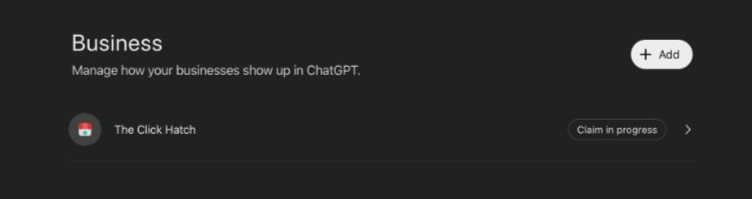
The Business Hub page. Click + Add to find your business. (This is our own claim in progress.)
Step 2: Search for your business
Type your business name into the search box. If you don’t see it, try variations (“Captain Joe’s Charters” vs. “Captain Joe’s Fishing Charters”) or include your town.
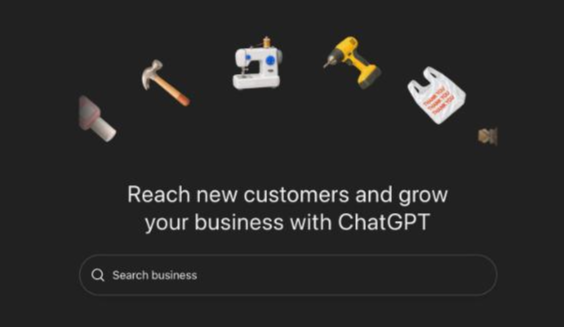
The search screen inside Business Hub.
Step 3: Select your listing and confirm the account
Pick the listing that matches your business and double-check the address. ChatGPT will show you which ChatGPT account will manage the profile. Make sure it’s the business account, then continue.
Step 4: Prove you own the business
You’ll see one or more verification options. You may not see all of them; use whichever one is offered and easiest for you:
- Business phone: you’ll get a code by text or automated call to the number on your listing. If your business line goes to a phone menu or voicemail, make sure a real person can pick up.
- Business email: a code is sent to the email tied to the business.
- Website domain (DNS): ChatGPT gives you a TXT record to add in your domain settings (GoDaddy, Namecheap, Cloudflare, etc.). This is the most technical option. If your website is with us, just reach out and we can add it for you.
- Shopify: only relevant if you sell gear or merch through a Shopify store.
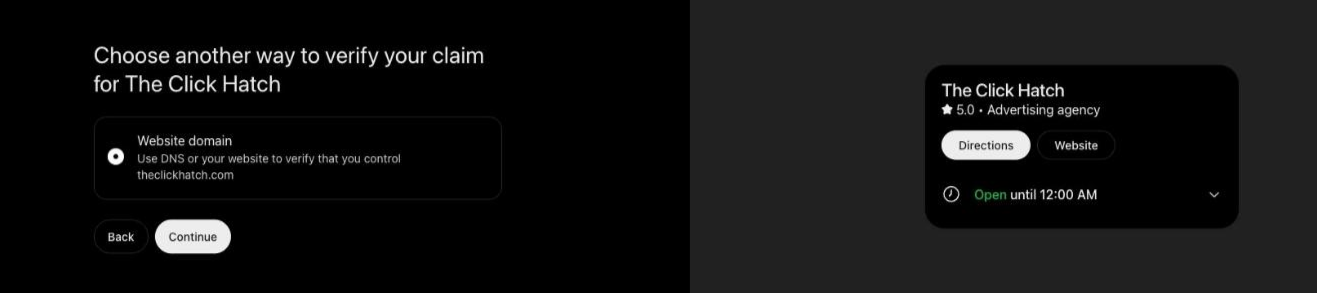
For our business, ChatGPT only offered the website domain option. Yours may show phone or email too.
Walkthrough: verifying with your website domain (GoDaddy example)
If you go the domain route, ChatGPT shows you three values to add to your domain’s DNS settings: a Type (TXT), a Name or host (openai-business-claim), and a long Value. Use the copy icons next to each one so you don’t mistype anything. Note the expiration time under the record. If it runs out before you verify, you’ll need to generate a new one.
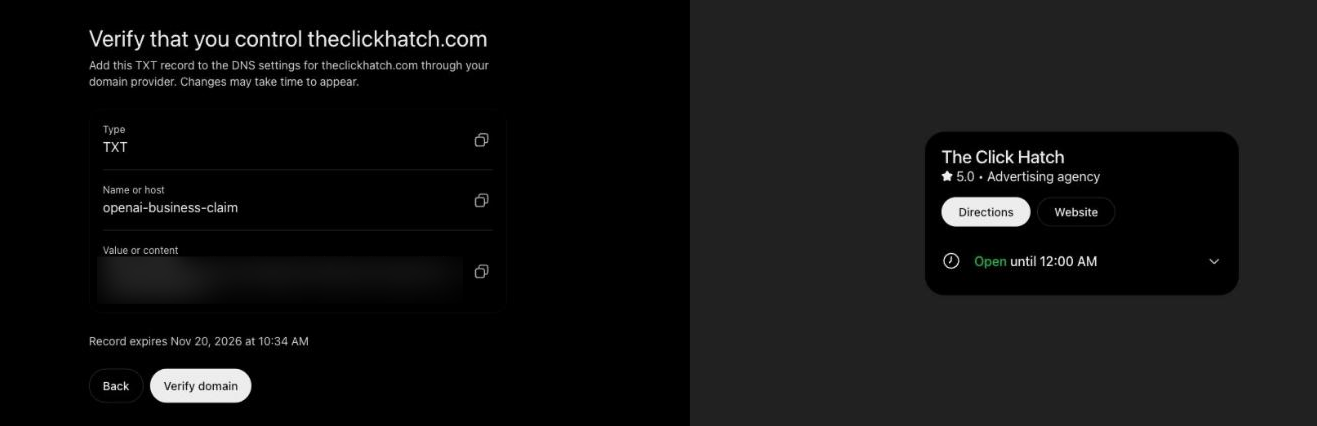
The TXT record ChatGPT gives you. (We blurred our value; yours will be unique.)
Here’s how that looks in GoDaddy, which is where a lot of you have your domains. Other providers (Namecheap, Cloudflare, Squarespace, Wix) work almost the same way.
- Log in to GoDaddy, open your domain, and click the DNS tab.
- Click Add New Record.
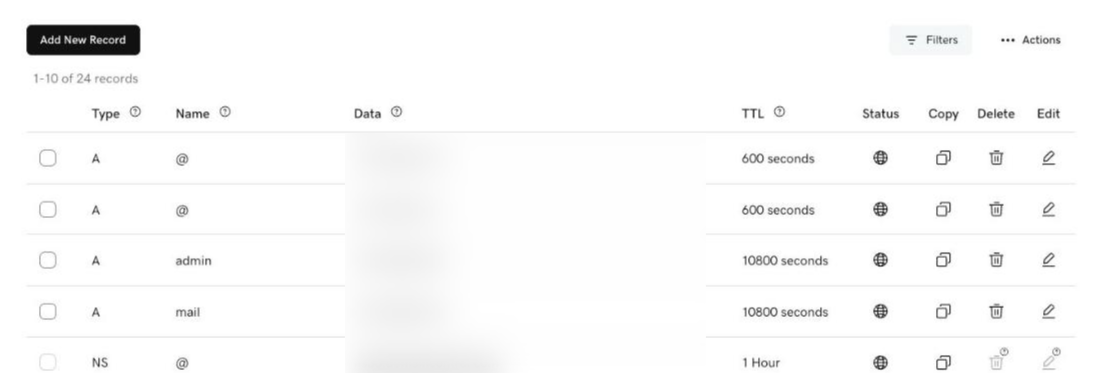
In GoDaddy, go to your domain, open DNS, and click Add New Record.
- Set Type to TXT.
- In Name, enter openai-business-claim. Don’t add your domain on the end; GoDaddy adds it for you.
- In Value, paste the full value from ChatGPT (it starts with “openai-business-claim=”).
- Leave TTL at the default and click Save. GoDaddy may text you a code to confirm the change.
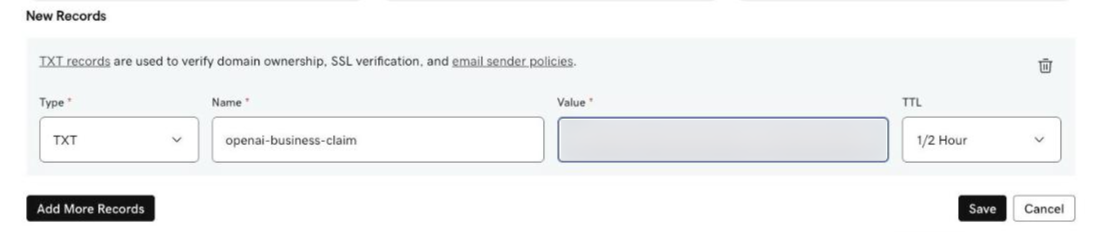
The new TXT record filled in, ready to save.
Then go back to ChatGPT and click Verify domain. Ours verified within a few minutes of saving, but DNS changes can take longer, so if it doesn’t work right away, wait a bit and try again.
Step 5: Wait for OpenAI’s approval
OpenAI reviews the claim and emails you a decision or a request for more information. Sometimes it’s minutes, sometimes a few days. If you realize you picked the wrong listing or account while it’s still under review, you can withdraw the claim and start over.
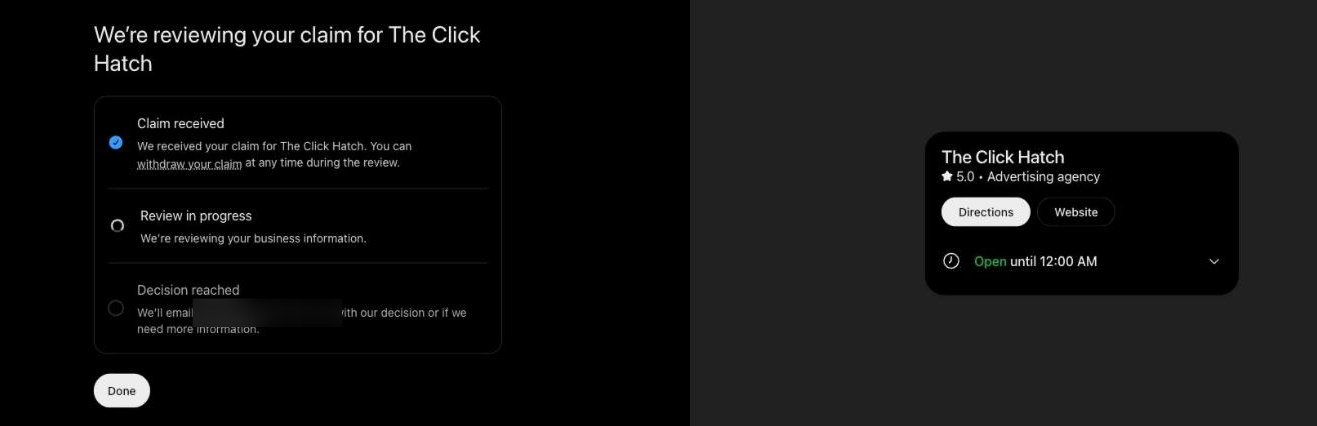
Once you verify, you will see this screen. OpenAI emails you when the review is done.
Step 6: Skip the extras
After approval you may see offers for ad credits, plan upgrades or a “Business Agent.” None of those are required. You can ignore them.
Step 7: Verify your identity with Persona
This is the step most people miss. OpenAI uses an outside company called Persona to confirm a real, authorized person is behind the profile. In Business Hub, select your profile, choose Verify, then Continue to Persona. You’ll scan your ID and take a quick selfie (you can scan a QR code to finish on your phone, no app needed). Until this is done, you can’t edit your info, see your insights, or get the blue check.
Step 8: Review and update your details
Once you’re verified, go through everything: website link, description, category, logo and cover photo. Write your description the way you’d explain your business to a customer on the dock: where you fish, what you target, what seasons you run, and who your trips are great for.
Important: For a brand-new profile, passing the Persona check can publish it automatically, and a published profile can’t be deleted or hidden. Review the preview carefully before you submit.
Troubleshooting: common snags
“I can’t find my business.” Try different name variations and include your city. Right now, local businesses (anything with a physical location) can only claim a listing that already exists in the U.S. If your business isn’t there, you may see a waitlist option. Join it, and in the meantime make sure your website and Google Business Profile are up to date.
“It says Contact support.” Your listing is locked. Click Contact support and OpenAI will walk you through next steps.
“Someone else already claimed it.” Check internally first (a family member, past employee or old marketing company?). If it’s not someone you know, use the ••• menu > Dispute ownership and verify with Persona.
“The phone code never came.” Confirm the number on your listing rings somewhere a person can answer, then retry or choose a different method.
“Domain verification keeps failing” or “This record has expired.” DNS changes can take a few hours to show up. Also check you didn’t accidentally double up your domain in the host field (many providers add it automatically). The TXT record also expires if you don’t verify in time. If you see the screen below, click Get a new record and replace the old value in your DNS settings. Or just send it to us.

If your DNS record expires before you verify, you will see this screen. Click Get a new record and update your DNS.
“I’m approved, but there’s no blue check and I can’t edit anything.” You haven’t finished (or passed) the Persona identity step yet. Complete it and watch your email.
“Persona failed.” This usually means your entries don’t exactly match official records. Double-check your legal business name, address and registration/tax number, then select Try again if it’s offered.
FAQ
Is this free? Yes. There’s no cost to claim and manage your profile, and you don’t need to advertise.
Do I have to do this? No, but ChatGPT can show your business either way. Claiming is how you make sure what it says is accurate.
Will this get me more bookings? Not directly. It won’t move you up in ChatGPT’s answers. It makes sure your info is right and shows you how often you’re coming up. Accurate info plus a strong website is what gives you the best shot.
Can The Click Hatch claim it for me? We can help with most of it, but the owner needs to do the claim and the ID check, since it requires your government ID and access to your business phone or email. The good news: once you’re verified, you can invite us as a team member so we can help manage it (see below).
How do I give someone else access? In Business Hub, select your business, click Invite in the upper-right corner, and enter their email. They’ll accept with their own ChatGPT account. Never share your login. We recommend adding at least one other admin so you don’t get locked out.
I have multiple locations or a lodge plus a guide service. Do I claim them all? Each brand and location is separate. Claiming the main brand doesn’t claim its locations, so repeat the process for each.
What’s a “Business Agent”? Do I need one? It’s an optional chat that answers customer questions on your behalf. Right now it’s limited to U.S. ecommerce and online service businesses, and it can’t take bookings anyway, so most charters and lodges can skip it.
How long does it take? The hands-on part is about 30 minutes. OpenAI’s review can take anywhere from minutes to a few days.
Anything I should read before agreeing? Yes. Like any platform, OpenAI has terms for this program. Among other things, OpenAI can still show and edit information about your business whether or not you claim it, and published profiles can’t be removed. It’s worth a quick read (links below).
Beyond ChatGPT: keep your info consistent everywhere
ChatGPT doesn’t just use your profile. It also reads your website and other sources around the web. The single best thing you can do for AI search is make sure your business name, address, phone number, hours and seasons match everywhere: your website, Google Business Profile, Bing Places, Yelp, TripAdvisor, and any booking platforms you use.
If your website is outdated or hard to read, that’s a bigger problem than any single listing. AI tools lean heavily on clear, well-organized websites, which is exactly how we build ours.
Helpful official links
- Setting up your business on ChatGPT (OpenAI Help Center: the official step-by-step guide)
- ChatGPT Business Hub (where you claim your profile)
- Introducing Businesses in ChatGPT (OpenAI announcement)
- Businesses in ChatGPT overview (OpenAI)
- Businesses in ChatGPT Terms
- Businesses in ChatGPT Policy
- Contact OpenAI Support
Still stuck?
Work through the steps above first. Most issues are covered in the troubleshooting section. If you’re a Click Hatch client and you hit a wall (especially with domain verification), just reply to my email and send a screenshot of where you’re stuck. We’ll get you sorted.
Not working with us yet? We help charters, guides, outfitters and lodges get found on Google, in AI search and through Google and Meta Ads. Hit the button below and let’s talk about your season.
